PD Modules for WHMCS: One Panel for Installation, Updates and Rollback
Manage the PD module family from one WHMCS panel. Connect your account, install modules, control updates and use built-in repair, rollback and background-job views.
Adding useful features to WHMCS should not mean maintaining a different installation routine for every module. As your hosting business adds DNS tools, customer onboarding, AI assistance or cloud provisioning, the work of installing and maintaining those extensions becomes part of running the service.
PD Modules is the control panel inside WHMCS that installs, licenses and updates the PD module family. Install the panel once, connect your account and add the modules you need from its Store. The same environment provides update management, background-job visibility and recent-version recovery tools.
For a hosting company, that makes the module family more than a collection of downloads. It gives staff a consistent way to introduce capabilities and maintain them as the business grows. A new module can solve a particular business problem while fitting into an installation and maintenance process your team already understands.
One installation opens the module family
The initial PD Modules package is installed in WHMCS and activated as an addon. You also grant the relevant administrator roles access. After that initial setup, individual PD modules are added through the panel rather than by manually uploading each package.
That distinction becomes useful quickly. A business might first add customer-verification tools, then introduce AI assistance or a cloud hosting product. Staff return to the same Store and installation process for the next capability. They do not have to build a fresh handover document around every new download.
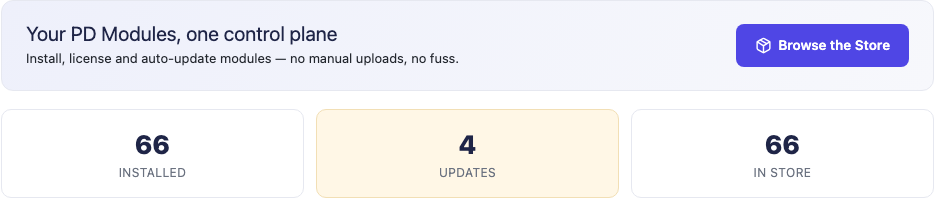
This actual panel crop shows its common starting point. The counters reflect the example installation at the time of capture; they are not a fixed number of modules you must install or a promise about today’s catalogue. The panel is useful whether you begin with a small selection or use a wider part of the family.
Each module still has its own purpose and configuration. A DNS tool and an AI assistant do different work. The shared panel manages the common tasks around them, helping your team spend more attention on choosing and using the capability that the business needs.
The PD Modules installation guide is a useful starting point for understanding the panel, while the PD Modules for WHMCS product page is the main place to explore the offering.
Connect the account instead of copying every licence key
The preferred activation route is Account → Sign in & connect. You sign in with the account that holds your licences, and the panel brings the relevant licences into the installation. That lets staff work from the account rather than copying a separate key whenever they add something.
A manual alternative remains available through Have a licence key?. This is useful when you choose to activate with a key instead of linking the account. The important point is that the account connection is the first route to consider, with key entry as another supported option.
Free modules also belong to an account. Their updates and support still need a relationship with the installation, even though the module is free. An account connection therefore has a practical role across the family, not only for paid features.
For a business with more than one WHMCS installation, licensing remains installation-specific. A shared account is not a reason to assume one module licence covers every independent billing installation. Keep the licences associated with the systems on which the modules run.
This creates a cleaner introduction to the ecosystem: connect the business account, see what is available to that installation and install the capabilities the team has selected. The account relationship supports maintenance after the first activation as well.
Add capabilities around the work your business does
The useful question is not how many modules you can install. It is which parts of the hosting operation deserve better tools.
A support team might want verified customer conversations and better account context. An agency could need an onboarding process that collects details after an order. A cloud reseller could want provisioning and customer controls for its server products. The PD family provides distinct modules for different jobs, managed through the same panel.
For example, PD MCP Hub exposes permitted WHMCS and contributing-module tools to compatible AI assistants and can attach approved external MCP servers. PD AI Assistant brings an assistant into the WHMCS working environment. Those are different capabilities that can work together, while their installation and updates belong to the shared PD Modules experience.
An illustrative rollout might begin with one team and one clear task. Install the selected module, configure the relevant settings and show staff the workflow they will use. When another capability becomes useful, add it through the same panel. There is no requirement to adopt the whole catalogue at once.
This is where a common module-management environment has commercial value: expansion can follow the business’s priorities without making every extension feel like an unrelated product to maintain.
Make updates part of an understandable routine
Software changes, and a module family needs a way to deliver improvements after installation. PD Modules lists available updates with the relevant release information and allows staff to apply an individual update or a group of updates. Automatic updating is also available when you choose to enable it.
The documented update process verifies the download, checks the new files before replacing the installed ones and includes a recovery path when an update cannot complete. This is designed to avoid leaving the module halfway through a file replacement.
Your team still decides how updates fit its operating routine. Some businesses prefer a scheduled maintenance window and manual review. Others may choose automatic updates for the PD modules they run. The panel provides the delivery mechanism while the operator sets the process.
The same update environment maintains PD Modules itself. The control panel is not a separate package that staff must remember to replace by hand while the rest of the family updates from inside it.
A consistent update view can also improve handovers. The person maintaining the installation can see what is installed and what has an update available, rather than asking several colleagues which downloaded archive was most recently copied onto the server. That is a practical improvement to everyday administration without implying that module updates replace all other WHMCS maintenance.
Understand update, repair and rollback as different tools
The panel gives staff several operations with distinct purposes. Explaining the difference helps your team choose the right action without treating every maintenance task as a new installation.
| Operation | What it is for | What the documented operation changes |
|---|---|---|
| Install | Add a selected PD module | Places the module on the installation through the panel |
| Update | Move to an available newer release | Replaces module files through the verified update process |
| Repair | Refresh the installed release | Reinstalls that release’s files without changing its version or the module’s stored settings/data |
| Rollback | Return to an offered recent release | Changes module files to the selected supported earlier release; retains stored data/settings |
Repair is useful when files have been changed or lost and you want a fresh copy of the same available release. Rollback addresses a different need: returning the module files to a recent release offered by the recovery page. Neither is a general backup of your WHMCS installation.
The Version & recovery page brings these choices together with installed-release information and version history. Rollback is limited to the recent releases offered by the panel, rather than presenting every historical release as an equally suitable target. You can update forward again when appropriate.
For a hosting business, the benefit is a defined maintenance path in the same place as the module itself. Staff do not have to invent a manual file-replacement procedure whenever they need to refresh or move between supported recent releases.
This is a capability worth considering when evaluating WHMCS modules. Features attract attention before purchase; the way the extension is maintained matters throughout its use.
Keep background work visible
Several useful module functions happen after a user leaves a page. Provisioning tasks, scheduled sweeps and reminders need background execution. PD Modules runs its background work through the existing WHMCS cron and provides a Jobs view showing when jobs ran and what they did.
That means the normal starting point is the cron WHMCS already needs. The panel also offers an optional dedicated cron arrangement for more frequent processing; the exact command belongs to the installation and is shown in its own Jobs page. A public blog does not need to guess a server-specific command to explain the benefit.
The value is visibility. When staff want to understand whether a background task has run, there is a place to inspect it. The shared mechanism supports the module family while each module supplies the work relevant to its purpose.
A running cron is part of normal WHMCS operations, so module installation should include checking the existing automation environment. That is an ordinary readiness step, not a reason to turn every feature guide into troubleshooting content.
Use one maintenance approach across a growing team
Imagine a hosting business introducing a small set of PD modules for its support and technical teams. This is an illustrative operating example, not a customer case study.
The administrator installs PD Modules, grants the intended WHMCS roles access and connects the account holding the licences. Staff then add the selected modules through the Store and configure their own workflows. The team records who owns each capability and how it will be used.
Later, the maintenance owner checks the update view, reviews the available release information and applies updates using the chosen routine. Background work is visible through Jobs, while Version & recovery provides the relevant repair and recent-release choices when needed.
If the team needs to report a module-specific issue, Report a problem offers a preview of the diagnostic information before the operator sends it to PD Modules support. That is a deliberate support tool, separate from the day-to-day settings and maintenance actions that staff can use themselves.
As more capabilities are introduced, the management pattern stays familiar. The business can evaluate the next module on its merits while relying on the shared panel for installation, licensing and maintenance.
A module ecosystem should be useful after installation
The first demonstration of a module usually focuses on what it can do. A complete evaluation also asks how the team will install it, activate it, keep it current and understand its background work.
PD Modules brings those common tasks into WHMCS. It supports a growing selection of capabilities without asking staff to manage every one as a separate download-and-upload routine. That makes it easier to build a module stack around real business needs and maintain it over time.
Explore PD Modules for WHMCS to begin with the panel, then choose the individual modules that solve the work your hosting business wants to improve.
PD Modules for WHMCS FAQ
Do I upload every PD module separately?
The initial PD Modules package is installed and activated in WHMCS. After that, individual PD modules are installed through its Store rather than by manually uploading each package.
Should I connect my account or enter a licence key?
Connecting your account is the preferred route: use Account → Sign in & connect so the panel can find the licences. Have a licence key? remains available when you prefer manual key activation.
Can PD Modules update installed modules automatically?
Yes. Automatic updates are available as an operator-controlled option. You can also review and apply available updates manually through the panel.
What is the difference between Repair and Rollback?
Repair reinstalls the current available release’s files. Rollback moves module files to an offered recent earlier release. The documented operations retain the module’s stored data and settings; neither is a complete WHMCS backup.
Do I need a separate cron for every module?
PD Modules uses the existing WHMCS cron for the background jobs it manages. Its Jobs page shows execution information and offers an optional dedicated cron configuration for more frequent processing.
Can I begin with only one or two modules?
Yes. Choose the modules that match your business needs and add others later. The common panel supplies the installation, licensing and maintenance environment; you do not have to install the whole family to use it.