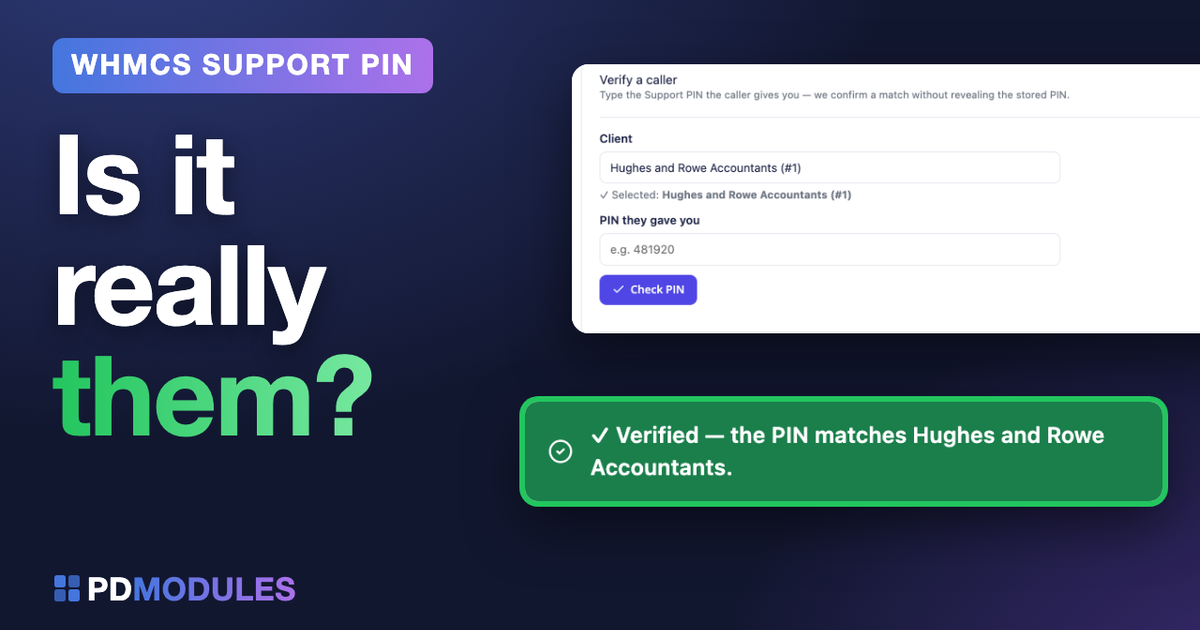
WHMCS Support PIN: Verify Callers Before Account Changes
Give your WHMCS team a consistent caller check with PD Support PIN: blind verification, staff-role controls and an activity record. Watch the tutorial.
“Can you change the email address on my account?”
It sounds like a routine support request. The caller knows the customer's name and the company they represent. Your team can find the account in WHMCS, but there is still a decision to make before changing it: what account check should the agent complete?
PD Support PIN gives your team a consistent step in that conversation. The customer reads a short PIN from their signed-in client area. Staff check the supplied value against the selected account and receive a match or no-match result, without needing to reveal the stored PIN.
PD Support PIN is a free WHMCS support PIN module, with every feature included. Developed by Projektif Digital Ltd, it runs inside the PD Modules panel and brings the check to the client profile and ticket screens your team already uses. You can also choose which staff roles may reveal or regenerate PINs, and review a record of the checks that took place.
The result is a workflow staff can learn, customers can follow and managers can review. Here is how it fits an everyday hosting support conversation.
Give your team a check they can repeat
A busy support desk handles requests through phone calls, live chat and tickets. Different agents can end up approaching the same request differently: one asks the customer to confirm an account detail, another looks through previous correspondence, and a third asks a colleague how to proceed.
A support PIN gives the conversation a defined account-checking step. Staff select the account involved, ask the customer for the current PIN in their client area, enter the supplied value and check the result.
That helps the team explain what happens next. A match means the supplied PIN matches that account's current PIN. A no-match means there is something to resolve before proceeding, such as the wrong account being selected or an older PIN being read out.
The check supports your account-verification process; it does not replace the decision about who may authorise a particular change. For example, a request to change an account email still needs to follow your team's process for that action.
Watch the customer-to-agent workflow
Our WHMCS Support PIN tutorial follows a demonstration customer requesting an email change. It shows the customer finding their PIN, the agent checking it, and the resulting activity record.
For the main parts of the conversation, jump to the customer's view at 2:30, caller verification at 2:57, or resets and practical tips at 4:19.
The screenshots in this article use the tutorial's demonstration accounts. They illustrate the workflow rather than a real customer support case.
Make the PIN easy for the customer to find
An account check works better when the customer understands what you are asking for. With the dashboard panel enabled, the customer signs in to their WHMCS client area and finds Support PIN on the home page, with a short explanation asking them to read it to the support team.
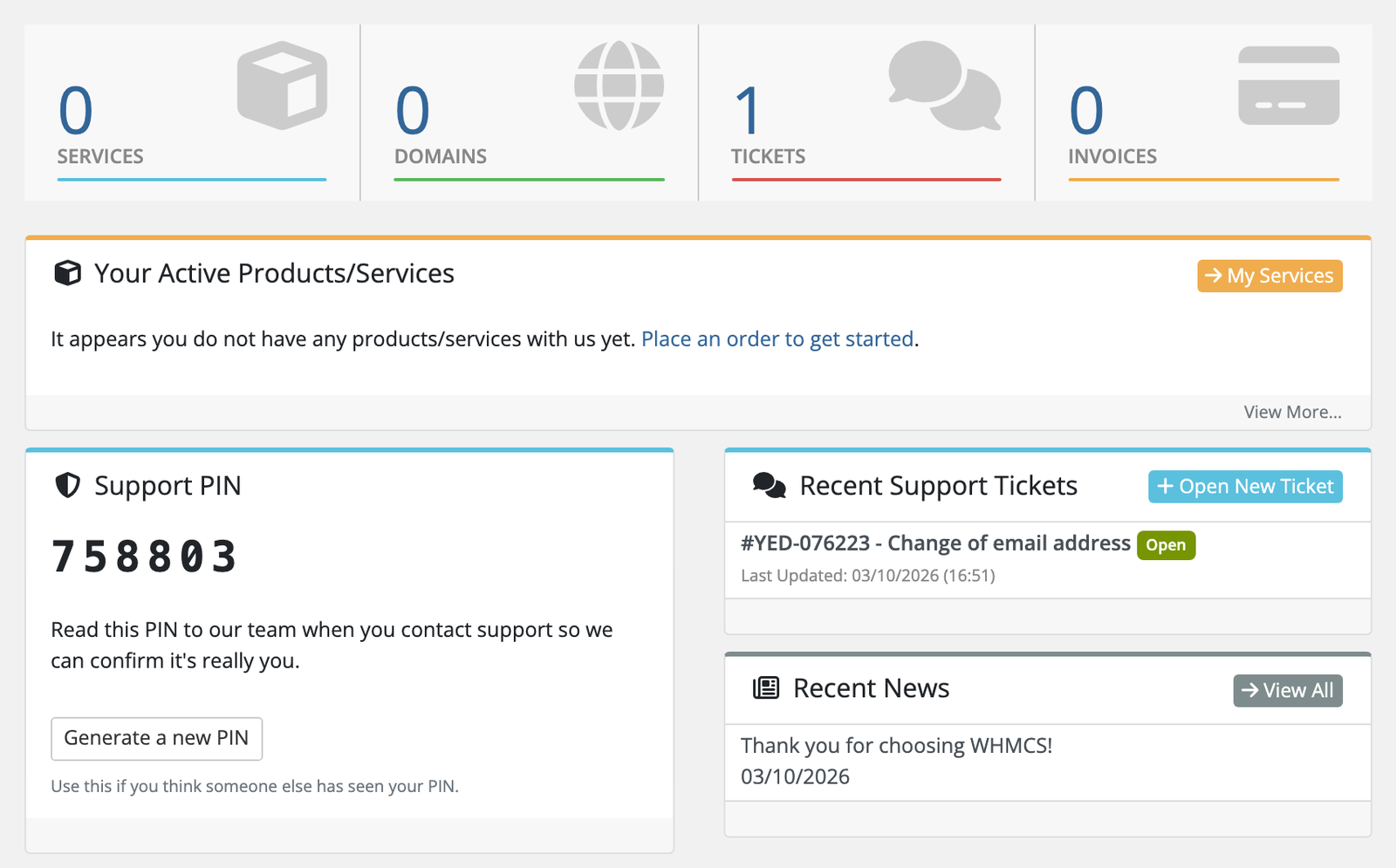
The customer side of the tutorial: a PIN available in the signed-in client area, with a clear explanation of its purpose.
You can also display a sidebar card or an entry in the client's Account menu. Choose the places that make sense for your client area rather than enabling every display option automatically.
There is no need to generate PINs for your entire customer list first. A PIN is created when a client first views their dashboard, or staff first open their Summary page or a ticket. Opening the standalone Verify tool and checking an account without a PIN does not create one.
If you allow self-service regeneration, the customer can generate a replacement from the dashboard panel. This gives them a way to replace a PIN they think someone else has seen, without needing staff to perform the reset. You can keep that control with staff instead if it suits your process.
Verify the supplied PIN without revealing the stored one
In PD Support PIN → Verify, the agent selects the client account, enters the PIN the caller provides and checks it. The tool compares that value with the account's current PIN and reports match or no-match.
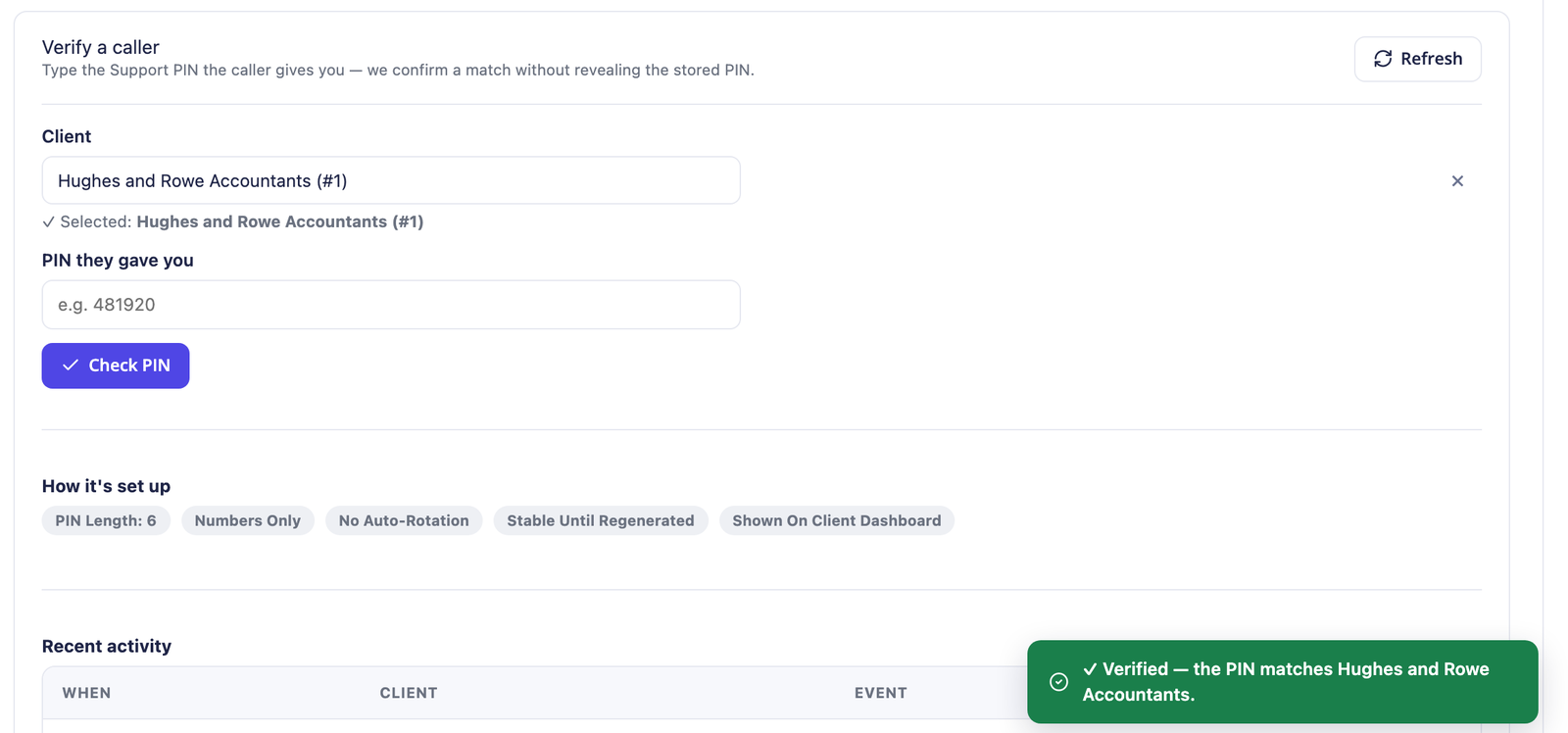
A successful check against the selected demonstration account. The stored PIN does not need to be revealed to perform the comparison.
This is blind verification. The agent hears or reads the value supplied by the caller, but does not need to look up the stored value to compare the two manually.
That distinction is useful in a shared support environment. An agent's job may be to check a caller, while permission to look up or replace stored PINs belongs to a smaller group. PD Support PIN provides controls for both parts of that workflow.
It also keeps account selection explicit. The check is against the client you selected, so choosing the right account is part of the process—not something to infer after receiving a result.
Keep the check on the client profile or ticket
Support work often starts with an account or ticket already open. The module adds a Support PIN row to the PD Modules area on the client's admin Summary page, and an optional panel to the client's ticket view.
The agent can enter the supplied PIN there, keeping the check alongside the request they are handling.
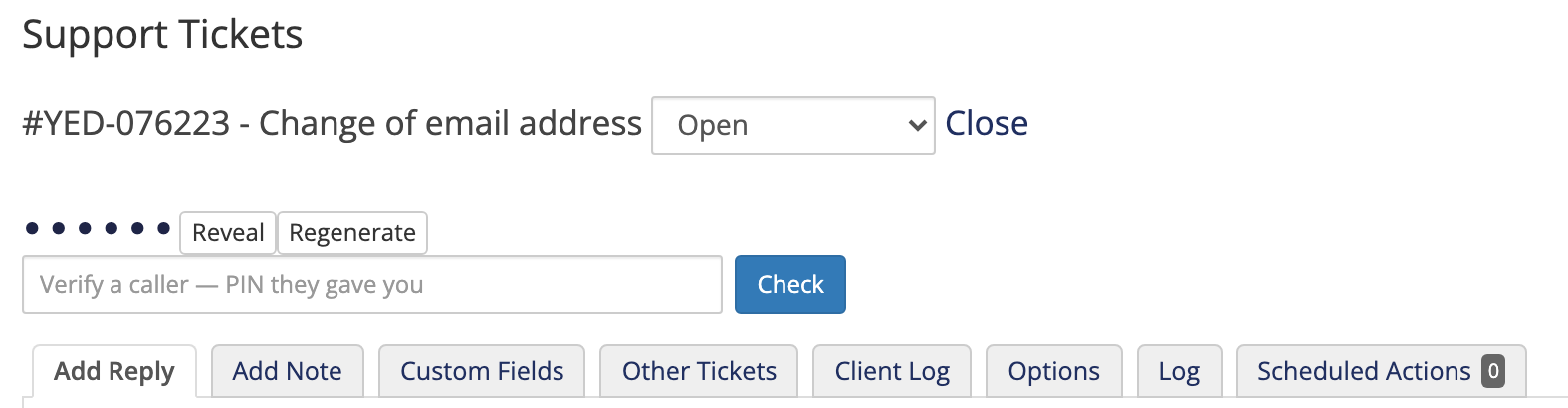
The check on the tutorial's email-change ticket. This example shows a staff role that is allowed to reveal and regenerate PINs.
For a support team, the benefit is practical: there is less need to move between an account, a separate verification page and the ticket to complete the same conversation. Whether staff start in Verify, the client Summary page or the ticket, they are checking the supplied value against the relevant account.
Decide which staff can reveal or regenerate PINs
Checking a PIN and administering it are different responsibilities. On Staff access, you choose which staff roles may reveal and regenerate PINs. Other roles retain the caller check but lose Reveal, Reveal PINs and Regenerate.
For example, a front-line role can handle the account check during calls, while a senior role handles PIN lookups or resets. Staff with restricted roles continue to see masked values even if the general masking setting is turned off.
These restrictions are a configuration choice. Until you change Staff access, every role may reveal and regenerate PINs; the built-in administrator role always retains full access. Review the roles deliberately when introducing the process to your team.
Reveal-on-click serves a related purpose: where a role is allowed to see a PIN, masking keeps it from being left on display until staff choose to reveal it. Keeping masking enabled does not prevent blind verification.
The tutorial demonstrates the established verification workflow. The Staff access controls described here were added after that recording and are not shown in its older interface.
Choose when a support PIN changes
A predictable PIN can make repeat support conversations straightforward. Other workflows may benefit from replacing it on a schedule or after each successful check. PD Support PIN lets you choose that behaviour.
| Approach | How it works | Practical consideration |
|---|---|---|
| Keep the PIN until regenerated | Leave scheduled rotation and regeneration after a successful check off. The PIN remains until someone replaces it. | Customers can use the same current PIN across conversations until it is regenerated. |
| Rotate on a schedule | Set automatic rotation to the number of days you want. Scheduled rotation runs through the WHMCS cron. | Customers should read the current value from their client area rather than rely on an old copy. |
| Regenerate after a successful check | Enable regeneration after successful verification. A match replaces the PIN. | Each PIN is usable for one successful verification; a later check needs the replacement. |
One-time mode is about what happens after a successful check. It should not be confused with a promise that every PIN expires after a fixed number of minutes.
PINs can contain six to eight characters, with numbers only or a mix of letters and numbers. Numbers are convenient to read aloud. If you choose alphanumeric PINs, look-alike characters are excluded and letters match in either case. Changes to length or character settings apply to new and regenerated PINs.
Choose the lifecycle your staff can explain consistently. Rehearse a successful check and a subsequent check with the replacement PIN if you enable one-time mode.
Give failed checks a visible record
A no-match needs context. The customer may be looking at an old PIN, or the agent may have selected the wrong account. Review those possibilities rather than treating a mismatch as proof of an attack.
The module's Activity view records events including PIN generation, regeneration, verification, staff reveals and automatic rotation. Staff can review when events occurred and who performed them, and filter the list by event type.
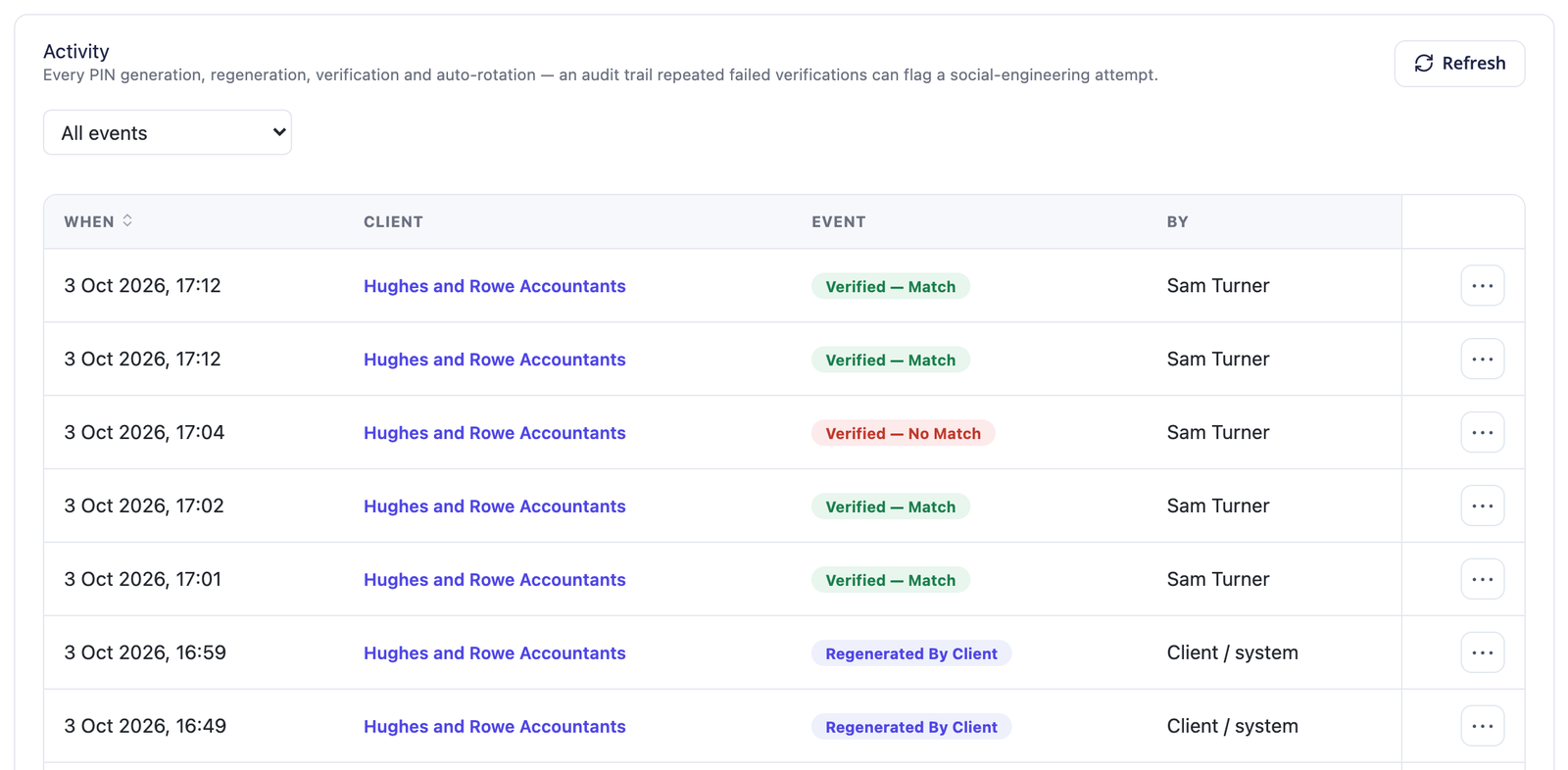
The tutorial's Activity view records matches and mismatches alongside who performed the check and when. The current interface also provides controls for paging through the log.
If a customer repeatedly supplies a PIN that does not match, the activity record gives your team something concrete to inspect. Ask them to check the current PIN in their signed-in client area and follow your normal verification process if the issue remains unresolved.
Repeated failed checks against one account can be a reason to investigate. The log helps that review; it does not turn every mismatch into an automatic fraud finding or send an alert on your team's behalf.
Avoid copying PINs into ticket conversations as a substitute for performing the check. If a PIN has been exposed, a client or authorised staff member can regenerate it, and the previous value stops matching.
Extend verification to your own helpdesk or phone system
If your support workflow begins outside WHMCS, the optional verification API provides another route to the same kind of check. Your own phone or IVR system, helpdesk backend or internal tool can submit a client identifier and the supplied PIN.
The API is off by default and requires a key when enabled. It is verify-only: it reports whether the PIN matches and never returns the stored PIN. Repeated wrong guesses are rate-limited, and API checks are recorded in Activity. One-time mode also applies to successful API checks.
This gives a developer a way to connect an existing support tool to PD Support PIN. It is a custom integration capability; the module's API documentation provides the request and response details. Keep the connection in the backend of your system so the API key remains private.
You do not need to enable the API to use the normal WHMCS verification screens.
Introduce the workflow to your team
Before asking customers to use the process, run through it with a test client account you control. Confirm that the customer can find the PIN, an agent can perform a check, and the result appears in Activity.
Review the front-line staff role as well as an administrator. If you intend that role to verify without revealing or regenerating PINs, check that its permissions reflect that choice. Then rehearse the no-match path so staff know how to ask for the current PIN and when to refer a request for further review.
For the introductory setup reference, use our guide to Support PIN verification in WHMCS. It covers the basic settings and first check without needing to reconstruct them from the video.
Frequently asked questions
What is a WHMCS support PIN used for?
It gives a customer a short value they can provide during a support conversation. Staff check it against the selected client account in WHMCS. PD Support PIN provides that check, display options for the client area and a record of the outcomes.
Can staff verify a PIN without revealing the stored value?
Yes. Staff enter the value the caller supplies and get a match or no-match result. The comparison does not require revealing the stored PIN. The agent still receives the caller's supplied value as part of the conversation.
Can I restrict which staff roles reveal or regenerate PINs?
Yes. Configure Staff access so the relevant roles retain verification but lose reveal and regenerate controls. Restrictions must be set explicitly; the built-in administrator role retains full access.
Where does a customer find their support PIN?
With the dashboard panel enabled, it appears on their signed-in client-area home page. You can also enable the sidebar card or Account menu entry. If you permit self-service regeneration, the customer can replace the PIN from their dashboard panel.
What should staff do when a PIN does not match?
Confirm that the correct account is selected and ask the customer to read their current client-area PIN. Regeneration or rotation may have changed an older value. If it still does not match, follow your team's account-verification process before acting on the request.
Can the PIN change after each successful check?
Yes. Enable Regenerate the PIN after a successful verification for one-time behaviour. A successful check replaces the PIN, so the customer needs the new value for another successful verification. It is off by default.
Is a support PIN the same as two-factor authentication?
No. Two-factor authentication protects sign-in; a support PIN supports an account check during a phone, chat or support conversation. Keep those purposes separate. Ask for the Support PIN intended for that conversation, rather than a login password or sign-in verification code.
Can I integrate it with my own phone system or helpdesk?
Yes, through the optional key-authenticated verification API. Your integration submits the client identifier and supplied PIN; the API returns the result without returning the stored PIN. Integration work is needed to connect your own system.
Does a PIN match authorise every requested account change?
No. It confirms a match against the selected account's current PIN. Your team still applies the approval and account-verification process appropriate to the requested action.
Is PD Support PIN free?
Yes. PD Support PIN is free, with all its features included. Install it through the PD Modules panel for your WHMCS installation.
Bring a consistent account check into your support conversations
Your customers need a clear way to find the PIN. Staff need a check they can perform where they work. Managers need to decide who may administer PINs and review what happened during a conversation.
PD Support PIN brings those pieces together inside WHMCS: blind verification, client and ticket panels, staff-role controls, optional rotation and an activity record.
Explore PD Support PIN for WHMCS to see the module. To get started, install the PD Modules panel, connect the account that holds your licence and add PD Support PIN from the Store.
