Meet Pidi: AI Support Inside Your PD Modules Panel
See Pidi turn a WHMCS module settings question into a change you can review. Watch the short demo and explore built-in PD Modules AI support.
You know what you want to change. Finding the right setting—and understanding what else it affects—can take longer than making the change itself.
Pidi, PD Modules AI Support, brings that help into the panel where you already work. It explains module settings, helps investigate problems and prepares supported changes for you to review. You can move from a question to a proposed action without leaving your PD Modules workflow.
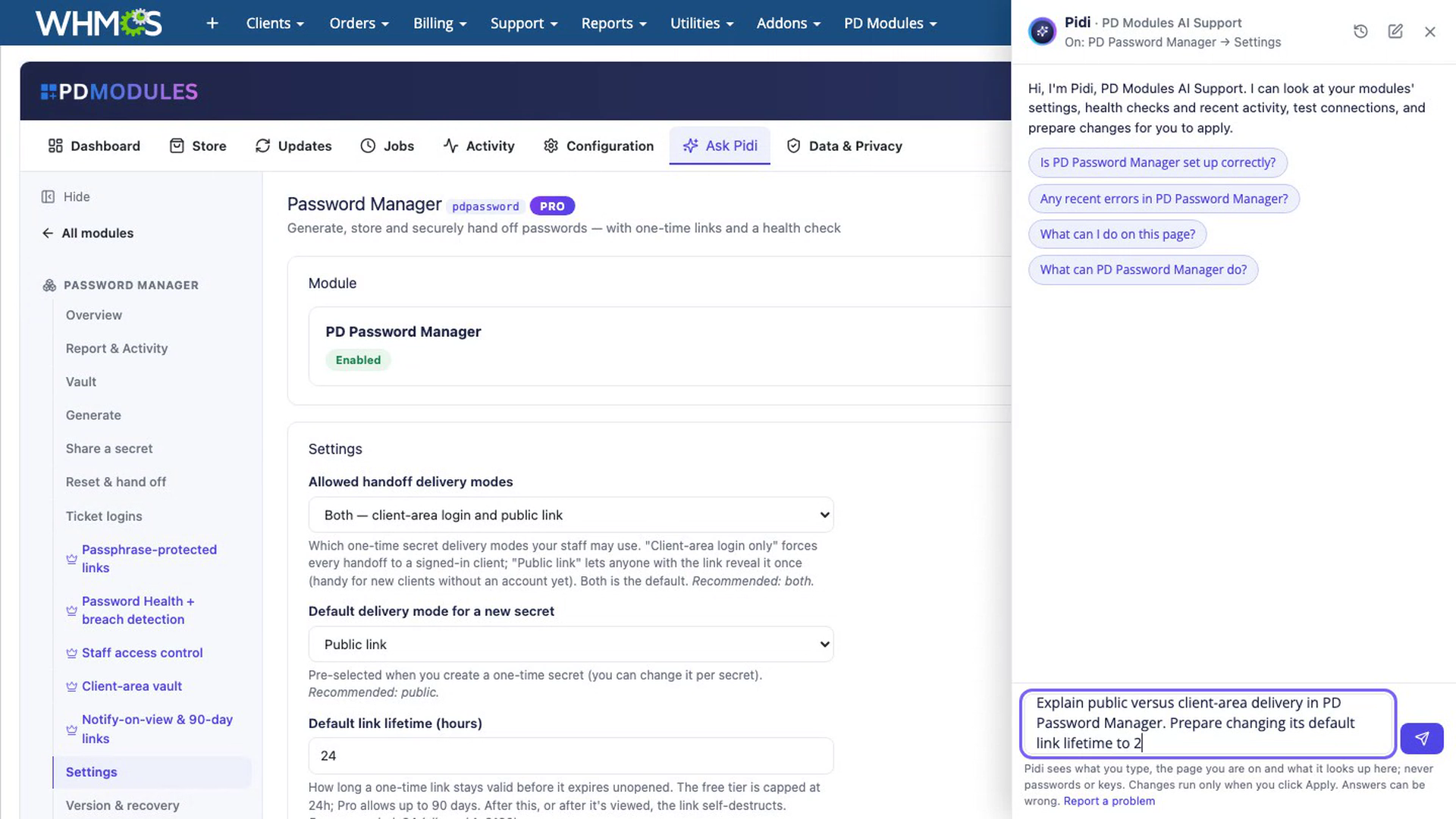
The useful part is what happens after the answer. In the short WHMCS demonstration below, Pidi prepares a change to Password Manager’s default link lifetime. The administrator checks the proposal, saves it and verifies the new value on the actual Settings page.
Watch: a question becomes a change you can check
The demonstration starts inside PD Password Manager. The administrator asks Pidi to explain the delivery choices and prepare a two-hour default link lifetime.
Pidi presents a settings proposal. The administrator reviews it, presses Save settings, then checks the module’s Settings page. The default lifetime is now two hours, while the other settings retain their previous values.
That is the practical benefit: a configuration question becomes a specific change you can inspect and approve, with a result you can verify in the module itself.
The two-hour value is an example for this demonstration, not a recommendation for every business. Choose a handover window that suits how promptly your recipients collect their credentials. Changing a default is also different from changing the expiry of a link you have already sent.
For the complete handover workflow, watch the PD Password Manager tutorial or explore PD Password Manager for WHMCS.
Help that starts with the page you are using
A useful answer needs context. Pidi can explain the PD Modules page you have open, so you can start with a question such as “What can I do on this page?” rather than first describing the interface from memory.
You can also ask about a module’s capabilities and settings. That is useful when deciding how to configure a feature or exploring another tool in the ecosystem.
For a team introducing several modules, this gives staff a consistent place to ask for help. Each module still has its own purpose and configuration; Pidi helps you understand the supported workflow while the shared panel keeps the tools together.
From a finding to an explanation
Pidi also helps investigate problems. Ask Pidi appears alongside supported findings, failed jobs, updates and recorded errors, bringing the issue into the support conversation.
For example, a finding in PD Guard can be the starting point for understanding what needs attention. An explanation helps the administrator decide the next step; it is not itself evidence that the underlying issue has been fixed.
This connects two parts of everyday administration: seeing that something needs attention and understanding what to do about it. The panel provides the finding, and Pidi helps explain it in context.
You review the proposed action
Pidi can prepare supported changes as action cards. The card gives you a concrete proposal to inspect before approving it. The button in the Password Manager example is Save settings; other supported actions can use a different confirmation label.
A useful routine is simple:
- Describe the outcome you want.
- Read the proposed values and the scope of the change.
- Approve the intended action.
- Check the result in the relevant module page.
Supported actions also include module-management proposals such as installation, updates, enable or disable, repair and rollback. The available action depends on the module and the operation; a chat request is not a promise that any arbitrary change can be performed.
Keep passwords and keys out of chat. Where a supported action requires a credential, use its dedicated credential input. The demonstration changes a policy setting and does not submit a password to Pidi.
Where Pidi fits in the ecosystem
Pidi is the support assistant built into PD Modules and is free for licensed installations. It is distinct from two other tools you may see in the Store:
| Tool | What it is for |
|---|---|
| Pidi | Help with PD Modules capabilities, settings, diagnosis and supported changes. |
| PD AI Assistant | Configurable AI features for staff and customers, using an AI provider you connect. |
| PD MCP Hub | Scoped connections for external AI tools, with approvals and an audit trail. |
You do not need to treat these as interchangeable products. Start with the task: help configuring a PD module, an AI experience for your users, or connecting an external assistant to authorised tools.
The free PD Modules panel is the common starting point. Upload and activate it once, give the intended administrators access and connect your account. Then add the modules you need from its Store. Each module’s own configuration remains part of setting it up for your business.
For a broader toolkit, All Access includes the modules and their Pro editions, plus new modules added while the subscription is active, for the installation covered. External provider charges remain separate. The WHMCS catalogue’s All Access explanation sets out the offer.
Start with one real question
Open a module you use, ask Pidi about the setting or finding in front of you, and review the proposed next step. The value is easy to see when the question is specific: less hunting for the right control, with the decision and verification still in your hands.
Explore PD Modules for WHMCS to see the panel, Pidi and the wider module workflow.