Blesta Support PIN: Verify Callers Before Discussing Their Account
Verify support callers in Blesta with PD Support PIN: blind PIN checks, customer self-service, staff permissions, rotation and a verify-only API.
A caller knows the business name, describes a hosting service and sounds confident. That is useful context, but it is not the same as demonstrating access to the customer’s account. For a hosting support team, the gap appears at exactly the moment someone wants help quickly.
PD Support PIN gives Blesta customers an account-specific PIN and gives staff a simple way to check it. The customer reads the PIN from their dashboard; the operator checks the supplied value against the selected account. Blind verification returns a match or no-match without displaying the stored PIN to the operator.
That creates a consistent opening to a support conversation. Your team can ask for the same account check, use the same interface and record the result, instead of improvising questions from information a caller may already know.
Give the customer a check they can actually find
A verification procedure is only useful if the customer can follow it during a call. On Blesta, PD Support PIN places the customer-facing panel on the client dashboard. The customer signs in, finds the Support PIN panel and quotes the displayed value.
The module creates a PIN when it is first needed, such as when the customer opens the dashboard or staff open the client profile. You do not need to make a bulk manual PIN list before introducing the process.
If enabled, customers can generate a new PIN themselves. That gives them a clear action when a PIN has been shared or they want to replace it. The newly generated value becomes the one staff must check; an old note or previous conversation is no longer the current reference.
For a hypothetical small hosting company, this could turn the first minute of a support call into a repeatable process: identify the intended account, ask the customer to sign in and read the PIN, then check it before discussing account-specific details.
Blind verification helps front-line staff do their job
PD Support PIN’s Verify screen asks staff to select the client and enter the PIN supplied by the caller. The result tells them whether it matches without revealing the stored value during the check.
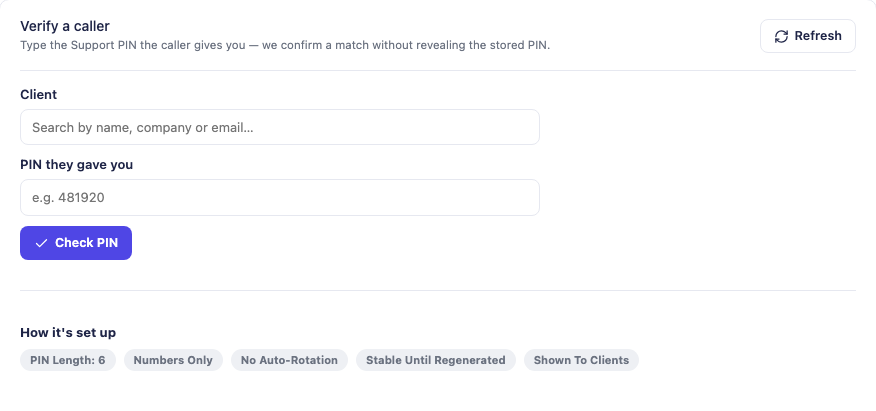
This is a real Blesta product screen, cropped to the verification form and policy summary. The visible example in the empty field is a placeholder, not a working customer PIN.
The important distinction is between checking a supplied value and reading the answer from the account. A front-line operator can perform the first task without needing the second capability. That makes the module useful for a team whose staff have different responsibilities.
A match is evidence that the caller has the current PIN. It is not proof of every aspect of identity, and it does not automatically authorise a sensitive account change. Keep the hosting company’s existing decision process for actions such as changing ownership or recovering access.
That qualification does not weaken the product’s role. It defines the role clearly: make a specific account check easy to perform and record, rather than pretending one short code replaces every support judgement.
Separate verification from reveal and regeneration
The Staff access page controls which staff roles may reveal and regenerate PINs. Staff who do not need those privileges can still verify callers through the blind-check route. The built-in administrator role retains its broader access.
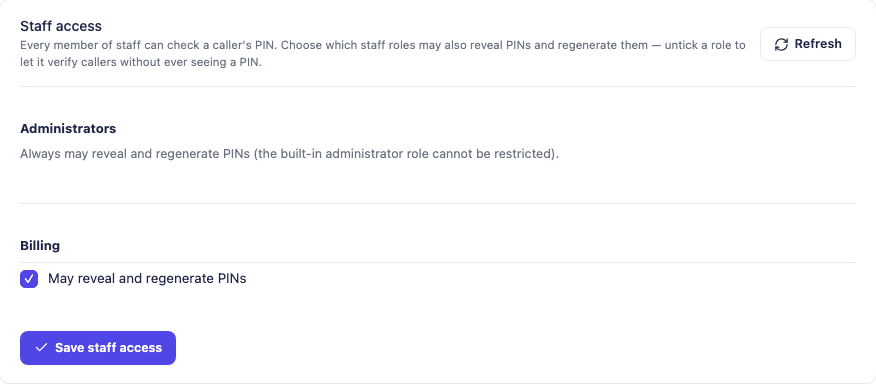
In an illustrative agency workflow, the first-line team verifies callers, while a smaller set of account administrators can reveal or regenerate a PIN when the business process requires it. Both groups work in the same Blesta installation, but do not need identical privileges.
This is also useful for onboarding new staff. The procedure can be taught as a short sequence with clear boundaries: choose the right account, ask for the PIN, perform the check and follow the appropriate next step. Staff do not need to learn a collection of unrelated identity questions for different services.
The client profile’s PD Modules strip also gives staff an in-context Support PIN row. That keeps the account relationship visible while working with the customer, rather than requiring a separate list detached from the account.
Choose a PIN policy that suits support conversations
The module supports six to eight characters, with numbers-only or alphanumeric formats. Numeric PINs are straightforward to read aloud. Alphanumeric PINs offer a different format while excluding look-alike characters, and letters match without case sensitivity.
The right choice is partly about how your customers contact you. A phone-heavy team may prefer a format that is easy to speak and transcribe. A team handling written account conversations may have different preferences. Consistency and a clear explanation matter more than choosing a setting and never telling staff what changed.
Optional scheduled rotation replaces PINs after the configured period. Optional one-time mode generates a new PIN following successful verification. That means a customer may need to read the latest dashboard value for a later conversation rather than reuse the code from the previous call.
| Setting | Useful operational question |
|---|---|
| PIN length and format | Can customers read it clearly through the support channel? |
| Customer regeneration | Should customers replace their own PIN when needed? |
| Scheduled rotation | How will the team explain periodically changed values? |
| One-time mode | Will staff remind customers that a successful check changes the PIN? |
| Staff reveal access | Which roles actually need to see or regenerate the stored value? |
When introducing a new policy, update the support team’s instructions as well as the setting. A changed format or rotated PIN should lead to a fresh account check, not a conclusion that the customer account is broken.
Connect a phone or helpdesk workflow through the verification API
PD Support PIN also provides a key-authenticated, verify-only HTTP API. It lets your own system submit a check and receive the verification result without retrieving the stored PIN.
That creates an integration opportunity for a phone menu, helpdesk or chatbot that you operate. For example, a hypothetical phone workflow could ask for the appropriate customer reference and Support PIN before presenting the call to a staff member. Your integration would handle the conversation and account mapping; the module would check the supplied value.
It is not a prebuilt promise that every phone platform connects automatically. The external system needs an integration that uses the supported request format, protects its API key and handles the response appropriately. The module applies rate limiting and records API checks in its activity log.
That verify-only boundary is valuable. A connected system needs an answer to a verification question, not a downloadable catalogue of customer PINs. Keep the integration focused on that purpose and handle an unavailable or limited response as a verification problem rather than guessing a match.
Use activity history to improve the support process
PIN generation, regeneration, verification, reveal and rotation events are recorded with their relevant actor and time. The log helps a supervisor distinguish a normal successful check from repeated failures or a value that changed between conversations.
A failed check is a prompt to review the situation, not an automatic diagnosis of an attacker. The caller may have selected the wrong account, read an old PIN or mistyped a character. Asking for the current dashboard value is more useful than repeatedly checking the same outdated code.
Repeated failures can still be an important signal for staff attention. The product gives the team a consistent record of that pattern, instead of leaving each operator to remember a call in isolation.
The same history can reveal process gaps. If customers regularly struggle to find the panel, improve the account guidance. If staff repeatedly reveal PINs when blind verification would suffice, review role access and training. The module’s controls are most useful when the team understands why they exist.
Make account verification a normal part of service
A support PIN works best as a familiar customer action. Explain where it appears, when your team will ask for it and what happens if it changes. Then make the staff procedure equally clear.
Explore PD Support PIN for Blesta for current product details. The task guides explain how customers find or regenerate their PIN, how staff manage reveal access and how to use the verification API.
Frequently asked questions
Where does a Blesta customer find their Support PIN?
The customer-facing Support PIN panel appears on the Blesta client dashboard. Customer regeneration is available when your configuration allows it.
Can staff verify a PIN without seeing the stored value?
Yes. Blind verification checks the value supplied by the caller and returns a match or no-match. Reveal and regeneration permissions are managed separately through Staff access.
Does a matching PIN authorise every account change?
No. It establishes that the supplied PIN matches the selected account. Sensitive changes still need the hosting company’s appropriate authorisation process.
Can I connect Support PIN to a phone menu or helpdesk?
The verify-only, key-authenticated API supports custom integrations with your own systems. A particular phone or helpdesk platform needs an integration that implements the supported request and handles the result.
Can PINs rotate automatically?
The module offers optional scheduled rotation and a one-time mode that regenerates the PIN after successful verification. Explain the chosen behaviour so customers know to read the latest value.
What should an operator do after a no-match result?
Confirm the intended account and ask the customer to read the current dashboard PIN. A changed or mistyped value can explain a failed check; repeated failures deserve staff attention rather than repeated guessing.