How to Redirect Your Website to Any Page or External Domain

Skip to main content
Print

How to Redirect Your Website to Any Page or External Domain

1. Log in to your cPanel account.

2. In the Domains section, click on Redirects.

cPanel - Redirects

3. Under Add Redirect, you should enter the following details and choose the appropriate options.

Type: Choose Permanent (301) or Temporary (302).
https?://(www.)? Leave this as it is, or should you want to redirect a directory or a page, enter the name of your directory or a full page in the text box.
Redirects to: Points to where you want to redirect your current domain or a page.
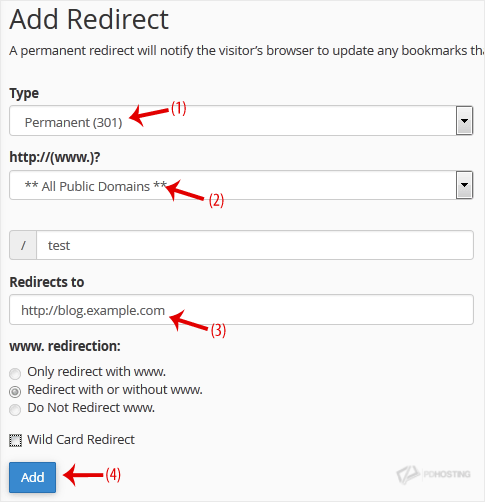
Add Redirect - Redirect configuration

4. Click on Add.

Redirect added successfully.
Table of Contents

Get your website online with PD Hosting

UK hosting, domains and support from a real team. From a first site to a full server.

Terms and Conditions  ·  Privacy Policy

PD Hosting is the trading name of Projektif Digital Ltd, registered in England and Wales, company number 12482555.

PD Hosting
Privacy Overview

This website uses cookies so that we can provide you with the best user experience possible. Cookie information is stored in your browser and performs functions such as recognising you when you return to our website and helping our team to understand which sections of the website you find most interesting and useful.