How can we help you today?
How to Forcefully Update or Reinstall a WordPress Plugin
The WordPress plugin is not working correctly, or you want to reinstall it without losing data or removing the plugin.
You can do this with both active and inactive plugins.
1. Log in to the WordPress dashboard.
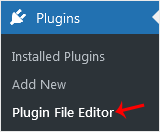
2. From the Dashboard menu, go to Plugins and click on Plugin File Editor.
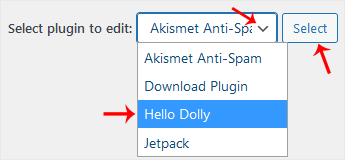
3. From the drop-down menu of Select plugin to edit, choose the plugin and click on Select.
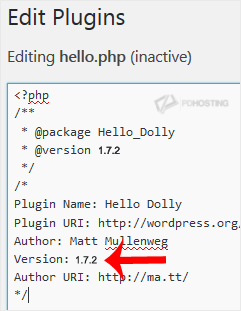
4. In the file editor, locate the version line:
Version: 1.7.2
Change it to:
Version: 1.7.1
Only change the version from a higher to a lower number.
5. Scroll down and click on Update File. Then go back to the Installed Plugins list. There should be an update for the plugin you edited. Click on Update now.
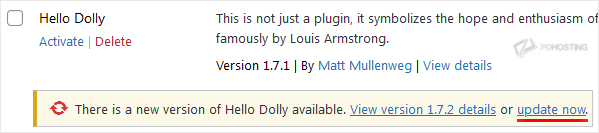
You have forcefully updated/reinstalled the plugin without losing data.
