How to Set Up an Email Signature in Android

Skip to main content
Print

How to Set Up an Email Signature in Android

We hope you have already read our tutorial on How to Set Up a cPanel Email Account in Android, and you have already added a built-in email widget to your Android screen.

The built-in Android email application allows us to set a custom email signature, which displays at the end of your email.

1. Open the Inbox or Gmail Application.
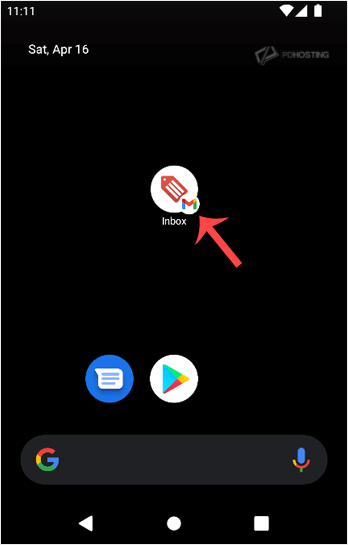
Press on Inbox

2. On the top left, tap on Menu. Scroll down to the bottom and then tap on Settings.
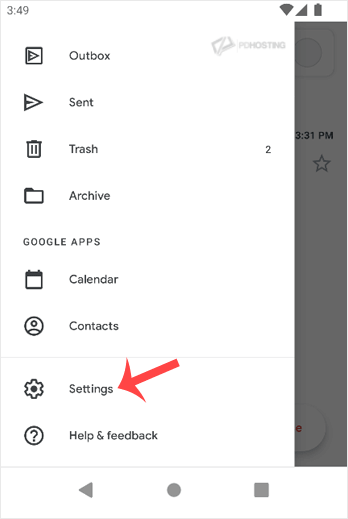
Tap on settings

3. Select your email account. If you have multiple accounts, you can set different signatures for each one.
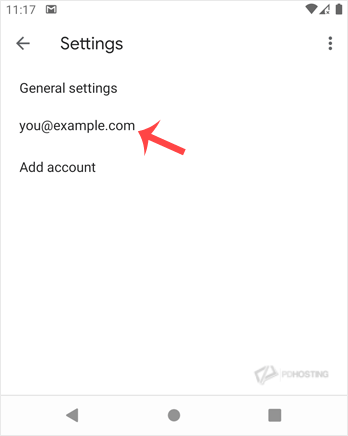
Select your email account

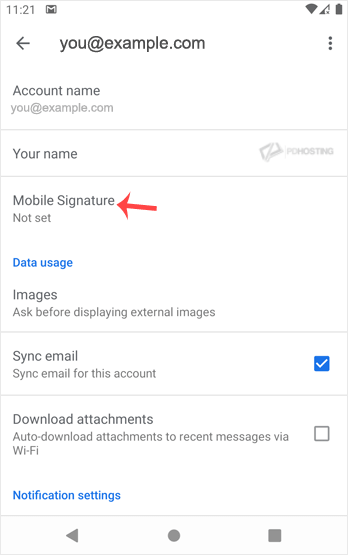
4. Tap on Mobile Signature.

Mobile signature

5. Set up your customized signature and then confirm with OK.
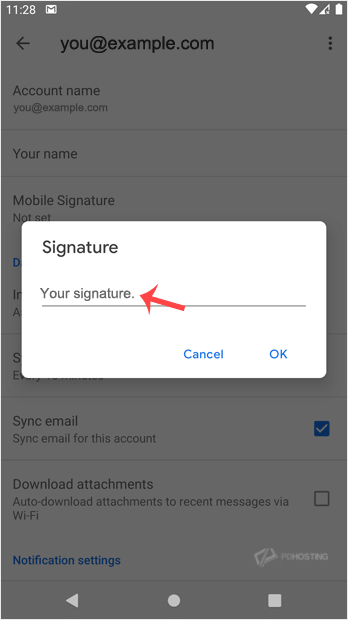
Customize signature and then confirm

Now, whenever you send an email or reply to one, the signature will be automatically added at the end of your email.

Table of Contents

Get your website online with PD Hosting

UK hosting, domains and support from a real team. From a first site to a full server.

Terms and Conditions  ·  Privacy Policy

PD Hosting is the trading name of Projektif Digital Ltd, registered in England and Wales, company number 12482555.

PD Hosting
Privacy Overview

This website uses cookies so that we can provide you with the best user experience possible. Cookie information is stored in your browser and performs functions such as recognising you when you return to our website and helping our team to understand which sections of the website you find most interesting and useful.